 Skip to content
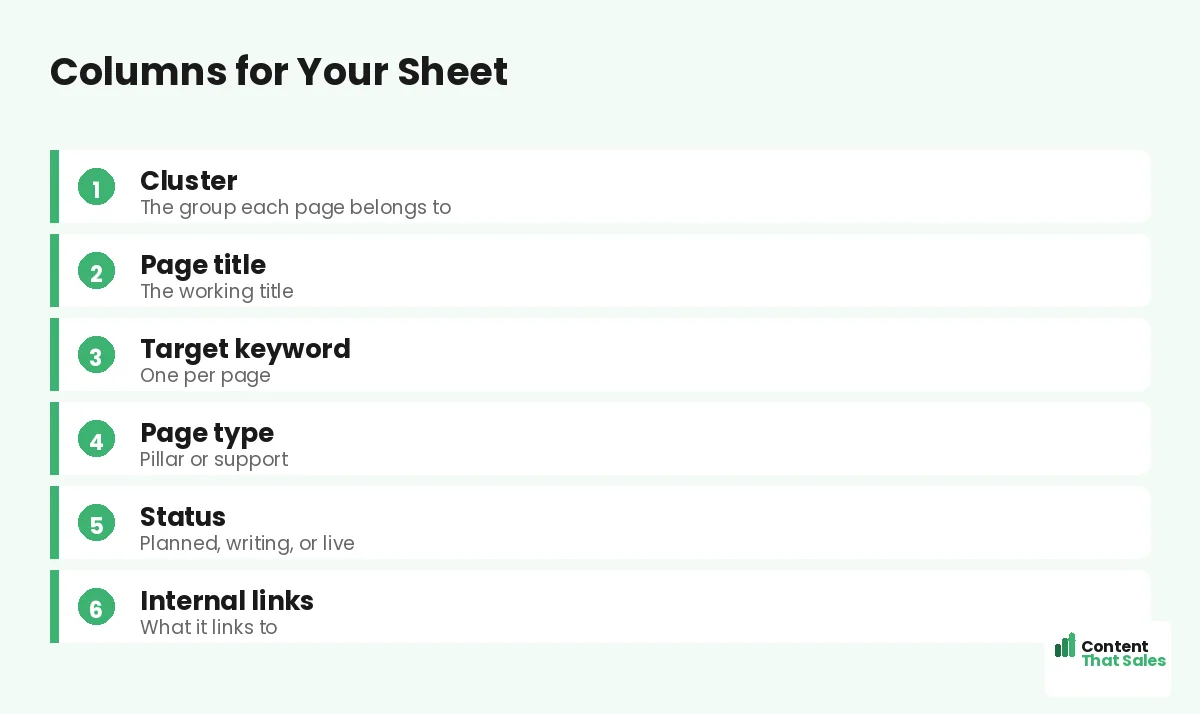
Learning how to build a topical map in Google Sheets gives you a free, flexible home for your entire content strategy, every cluster, page, keyword, and status in one organized place. A spreadsheet is the practical workhorse of topical mapping, and Google Sheets makes it easy to set up, share, and update. This guide walks you through the exact columns to create and how to use your sheet to plan, track, and execute your map.
You do not need fancy software to run a professional topical map. A well-structured Google Sheet does the job: it holds your whole plan, shows your progress at a glance, and updates instantly as you publish. Let’s build one step by step.
Below, we walk through setting up the columns, mapping clusters and pages, tracking your progress, and getting the most from your topical map spreadsheet.

Why Google Sheets Works So Well
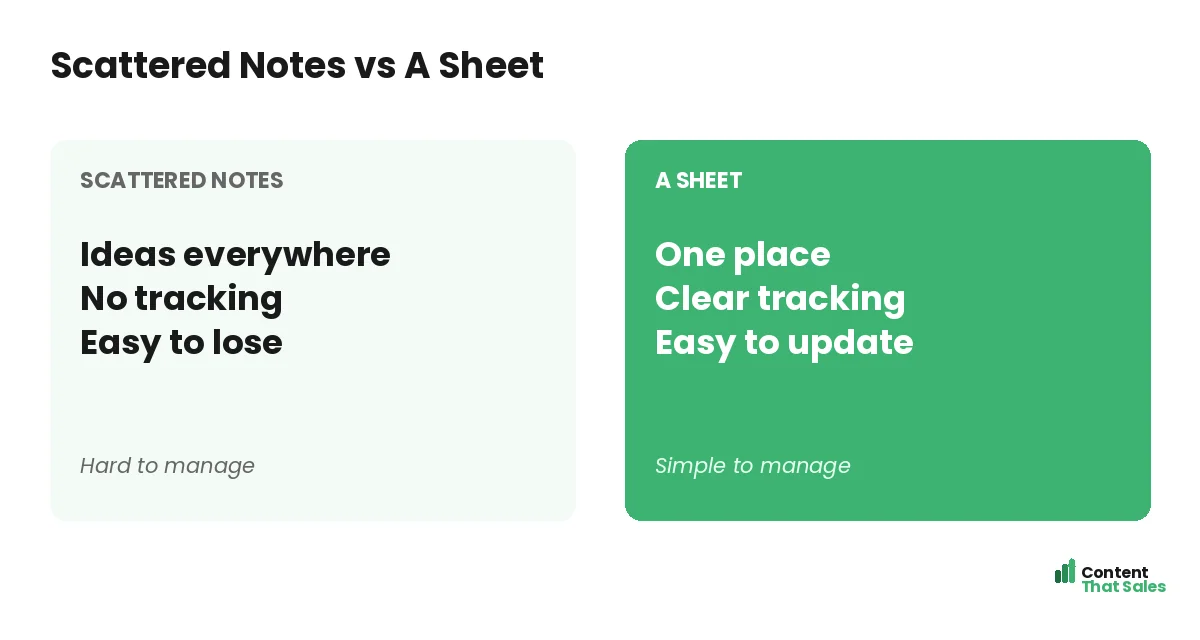
Google Sheets is free, flexible, and collaborative, perfect for a topical map. You can structure it however you like, sort and filter to find anything, and share it with your team. It keeps your entire plan in one living document everyone can see.
A spreadsheet is the practical home of any topical map. If you need the strategy first, see our guide on how to build a topical map. Here, we focus on turning that strategy into a working Google Sheet.
Column 1: Cluster
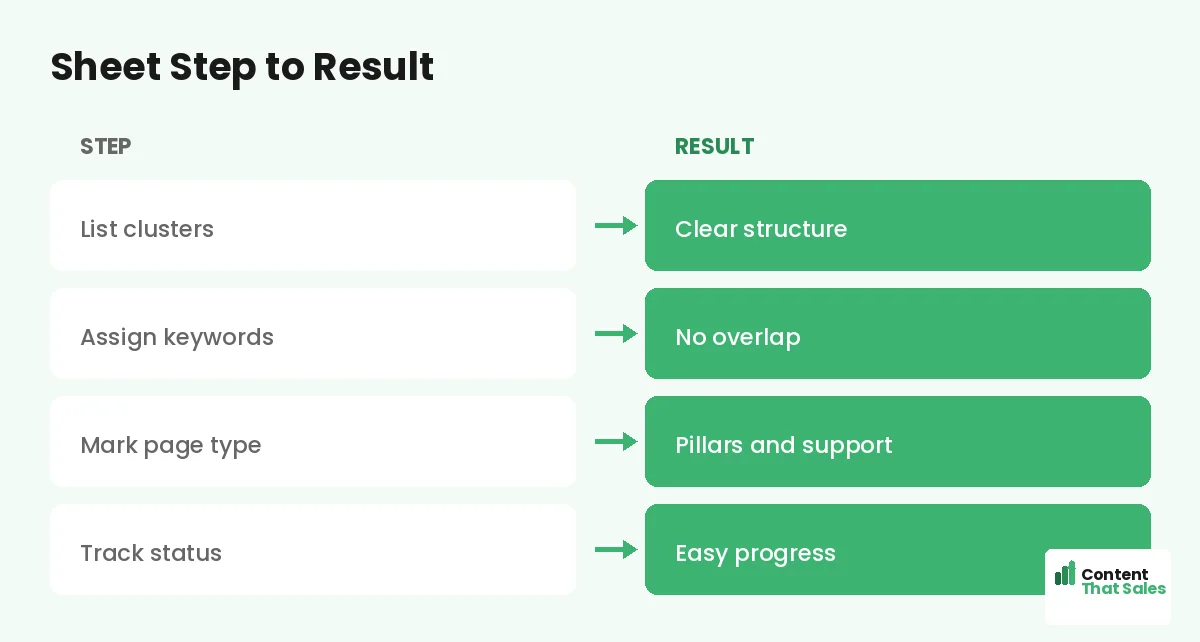
The first column is the cluster, the group each page belongs to. This is how you organize your map into sections. Every page gets assigned to a cluster, so you can sort and view your content by topic group and see each cluster’s coverage at a glance.
Clusters are the backbone of your map’s structure. Naming them clearly, by subtopic, lets you filter the sheet to one cluster and check whether it is complete. This column turns a flat list of pages into an organized, grouped structure.
Column 2: Page Title
Next, a column for the page title, the working title of each page you plan to create. This is the human-readable name that tells you what the page is about. It does not have to be final; it just needs to clearly identify the page.
Listing every planned page title gives you the full scope of your map in one column. As you brainstorm subtopics, perhaps starting in a mind map, each becomes a row with a title. This column is essentially your content to-do list, organized by cluster.
Column 3: Target Keyword
Each page needs a target keyword, one column for the primary search term that page will rank for. Assigning one keyword per page prevents cannibalization, where two pages compete for the same term. This column keeps every page focused and distinct.
This is also where your map meets keyword strategy. For the distinction, see our guide on a topical map vs a keyword map. In the sheet, the keyword column ensures each page has a clear, unique target.
Column 4: Page Type
Add a column for page type, marking each page as a pillar or a supporting page. This tells you the role each page plays in its cluster and guides your internal linking, since pillars and support pages link differently within the structure.
Knowing each page’s type at a glance helps you build the cluster correctly. You can filter to see all your pillars, or all the support pages in a cluster. This column keeps the hierarchy of your map clear within the spreadsheet.
Column 5: Status
A status column tracks where each page stands, planned, writing, or live. This turns your map into a progress tracker, so you always know what is done and what is next. It is one of the most useful columns for managing the work.
Color-coding the status makes progress visible at a glance. Since readers scan more than they read, a clear status column lets you scan your whole map and instantly see your coverage and momentum.
Did you know?
A simple status column with color-coding turns your topical map spreadsheet into a live progress tracker, so you always see what is done and what is next.
Column 6: Internal Links
Add a column to note the internal links each page should have, which pillar it links to and which related pages connect to it. Planning links in the sheet ensures you build the connected structure that makes a topical map work.
This column keeps your linking intentional rather than an afterthought. As you write each page, you can see exactly what it should link to and from. A clear linking plan in the sheet turns separate pages into a connected cluster.
Optional Extra Columns
You can add columns as needed: search volume, priority, assigned writer, publish date, or the live URL once a page goes up. Extra columns turn your map into a fuller project tracker, but keep it manageable, add only what you will actually use.
A priority column helps you sequence work; a URL column links the plan to the live pages. Tailor the extra columns to your workflow. The beauty of a spreadsheet is that you can extend it without breaking the core structure.
Set Up the Structure
With your columns defined, set up the sheet: header row at the top, one row per page, grouped by cluster. Freeze the header row, and use filters so you can sort by cluster, status, or page type. This makes a large map easy to navigate.
Group rows by cluster so each section is visible together. You can even use separate tabs for very large maps, one tab per major area. A clean structure from the start keeps your sheet usable as it grows to hundreds of rows.
Use It to Track Progress
Once built, your sheet becomes your command center. Update the status as you write and publish, check off completed clusters, and see at a glance what remains. This keeps your content effort organized and your map moving forward steadily.
Reviewing the sheet regularly shows your coverage and momentum. You can quickly spot which clusters are complete and which need work. A well-maintained sheet keeps a long-term topical map strategy on track, one page and cluster at a time.
Keep the Sheet Living
Your sheet should evolve with your map. Add new rows as you find subtopics, update statuses as pages go live, and refine clusters as your strategy sharpens. A living sheet keeps your map current and your strategy in one reliable place.
Simple, clear content keeps winning, since easy reading lifts engagement. The sheet plans the structure; quality writing delivers it. Keep both up to date, and your topical map stays organized and effective as it grows.
Put It All Together
To build a topical map in Google Sheets, create columns for cluster, page title, target keyword, page type, status, and internal links, then add a row per page grouped by cluster. Use filters and color-coding to keep it navigable, and update it as you go.
A spreadsheet is free, flexible, and powerful enough to run a professional map. Set up the columns, fill in your pages, track your progress, and keep it living. With this simple structure, Google Sheets becomes the reliable home of your whole content strategy.
How Content That Sales Helps
We build and run your map for you. That’s where we come in. At Content That Sales, we set up your topical map spreadsheet, fill it with researched clusters and keywords, and write the connected pages, so the whole strategy is done and tracked.
You share your subject and goals. We structure the sheet, plan the pages, and produce the content, keeping everything organized and on track. The result is a complete, well-managed topical map and the content that fills it.
Ready to Build Your Map Sheet?
Now you know how to build a topical map in Google Sheets: columns for cluster, title, keyword, type, status, and links, grouped by cluster and kept living. It is free, flexible, and powerful. So why not set yours up today?
Let’s build your map sheet and the content. Book your free consultation now. Call us at 8801631988589 or email service@contentthatsales.com. Let’s turn a spreadsheet into a strategy that ranks.
Frequently Asked Questions About Topical Maps in Google Sheets
Why use Google Sheets for a topical map?
It is free, flexible, and collaborative. You can structure it freely, sort and filter to find anything, and share it with your team, keeping the whole plan in one living document.
What columns should I include?
At minimum: cluster, page title, target keyword, page type, status, and internal links. Add optional columns like priority, writer, or URL as your workflow needs.
Why a cluster column?
It organizes your map into topic groups. Assigning every page to a cluster lets you filter by group and check each cluster’s coverage at a glance.
Why one keyword per page?
To prevent cannibalization, where two pages compete for the same term. A keyword column keeps every page focused on a clear, unique target.
How does the status column help?
It tracks each page as planned, writing, or live, turning your map into a progress tracker. Color-coding makes your coverage and momentum visible at a glance.
Can a spreadsheet handle a large map?
Yes. Group rows by cluster, freeze the header, use filters, and split very large maps across tabs. A clean structure stays usable at hundreds of rows.
Should I plan internal links in the sheet?
Yes. A links column keeps your linking intentional, noting which pillar each page links to and which related pages connect, so you build a connected cluster.
Can Content That Sales help?
Yes. We set up your map spreadsheet, fill it with researched clusters and keywords, and write the connected pages. Reach out for a quick quote.